
Minecraft Chat Guide: All You Need to Know
Chat in Minecraft serves as a vital communication tool, enabling players to connect, coordinate actions, trade resources, ask questions, and engage in role-playing. It's also a channel for server administrators to send system messages, alert players about events, distribute rewards, and announce updates.
Table of Content ---
- How to open the chat and use commands
- Communication on the server
- Frequently asked questions and errors
- Text formatting
- System messages
- Useful commands
- Chat settings
- Differences between Java and Bedrock Edition
- Chat on custom servers
How to open the chat and use commands
 Image: youtube.com
To start chatting, simply press the 'T' key on your keyboard. A text box will appear, allowing you to type your message and hit 'Enter' to send it. If you begin your message with a "/", you're entering a command. Here are a few common ones:
- "/tp" — teleport to another player;
- "/spawn" — teleport to spawn;
- "/home" — return home (if set up);
- "/help" — list of available commands.
In single-player mode, commands are only effective if cheats are enabled. On servers, command usage depends on your permissions.
Also read: Take charge of Minecraft: a deep dive into commands
Communication on the server
 Image: youtube.com
Server communication is multifaceted. The standard chat allows all players to see your messages. For private talks, use "/msg" to send a message visible only to the intended recipient. On servers with plugins, you might find group or team chats, accessible through commands like "/partychat" or "/teammsg". Some servers feature global and local chats: global messages are seen by everyone, while local messages are visible only within a specific range.
Roles on the server also dictate chat capabilities. Regular players can chat and use basic commands, whereas moderators and administrators have additional powers, including the ability to mute or ban players. Muting restricts a player from sending messages, while banning prevents them from accessing the server.
Frequently asked questions and errors
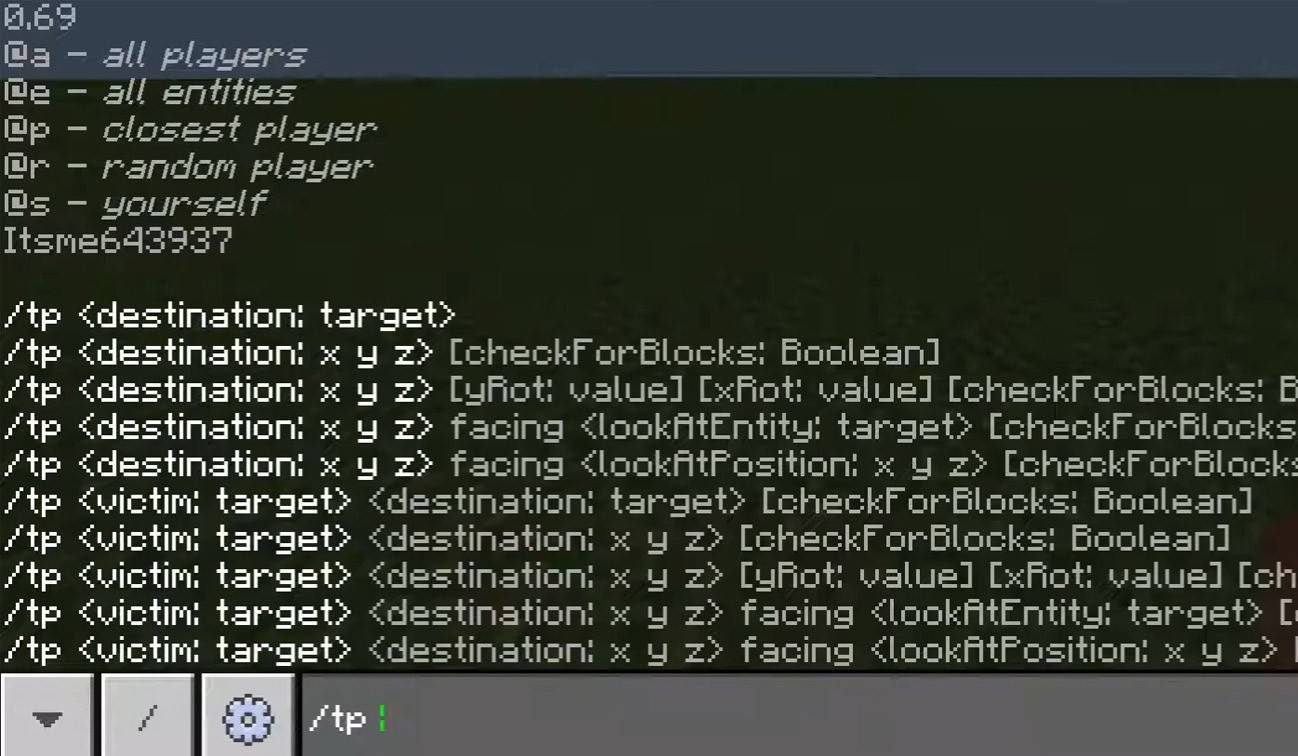 Image: youtube.com
- "Chat won’t open" — try adjusting the key in the control settings.
- "I can't write in chat" — you may be muted or the chat might be disabled in your game settings.
- "Commands aren’t working" — verify your permissions on the server.
- "How to hide the chat?" — you can turn it off in settings or use the "/togglechat" command.
Text formatting
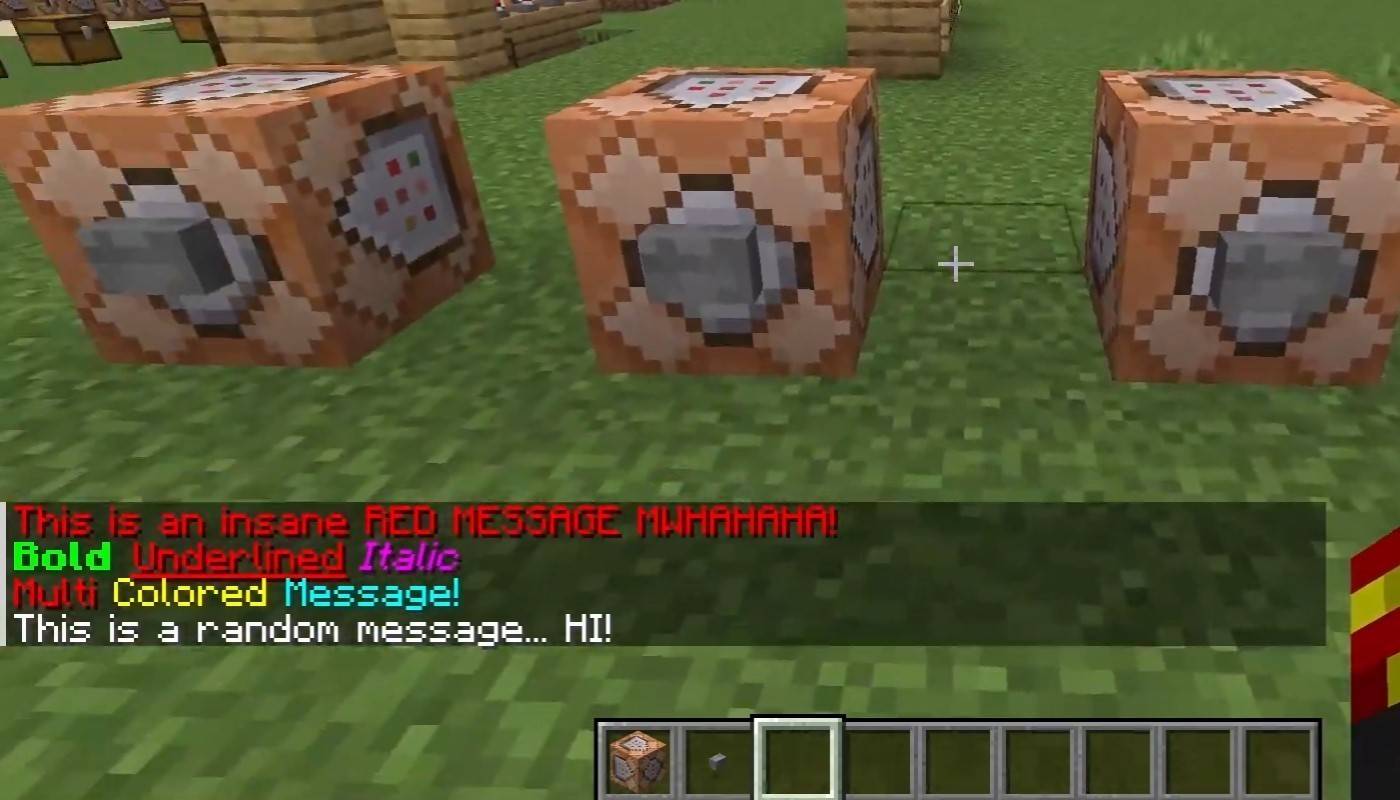 Image: youtube.com
On servers supporting text formatting, you can enhance your messages with:
- "&l" — bold text;
- "&o" — italic;
- "&n" — underlined;
- "&m" — strikethrough;
- "&r" — reset formatting.
System messages
Chat displays various system notifications such as player join/leave messages, achievement announcements (e.g., "Player has obtained a diamond pickaxe"), server updates, news, events, and command errors (e.g., "You do not have permission"). It also shows executed command results and game status updates. Administrators and moderators utilize chat to communicate important changes or server rules.
Useful commands
- "/ignore" — ignore messages from a specific player;
- "/unignore" — remove a player from your ignore list;
- "/chatslow" — slow down chat by limiting message frequency;
- "/chatlock" — temporarily disable the chat.
Chat settings
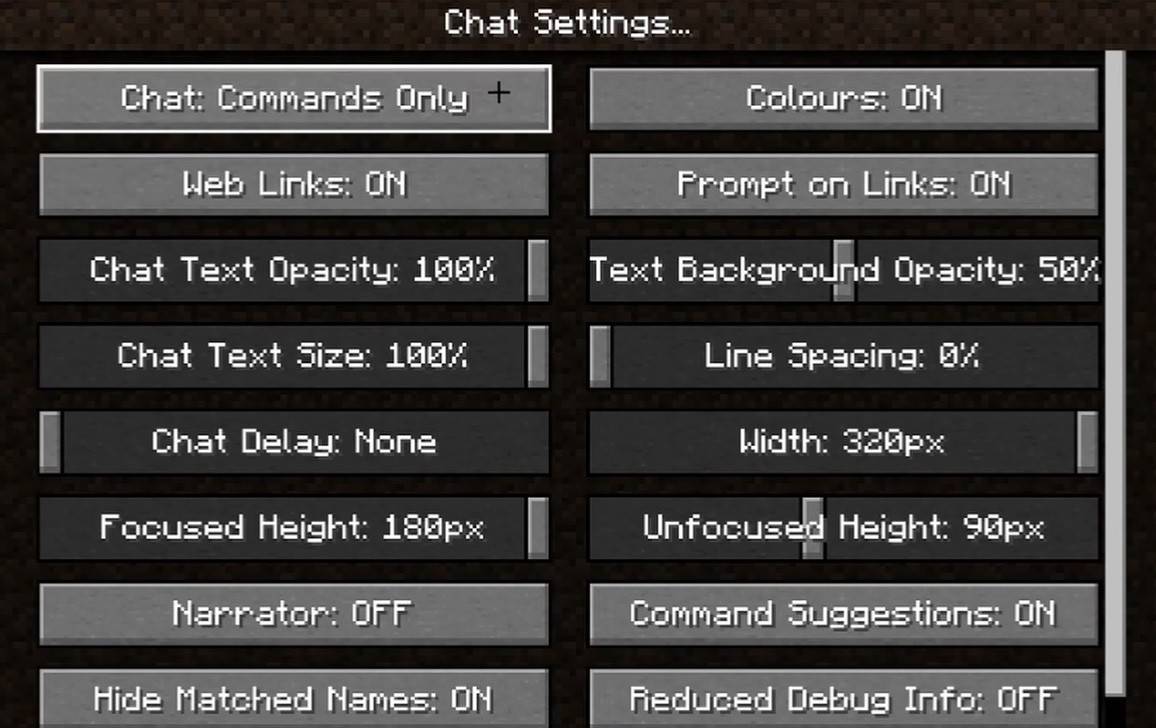 Image: youtube.com
In the "Chat and Commands" menu, you can toggle chat on/off, adjust font size, background transparency, and enable a profanity filter (in Bedrock Edition). You can also customize command message display and text color. Some versions allow filtering chat by message type, enhancing the gaming experience.
Differences between Java and Bedrock Edition
Bedrock Edition has slightly different commands (e.g., "/tellraw" functions differently). Recent Java Edition updates have introduced message filtering and a requirement to confirm sending messages.
Chat on custom servers
Custom servers often feature auto-announcements about rules, events, and more. Message filters to block spam, ads, profanity, and insults are common. Large servers may provide specialized chats like trade, clan, or faction channels.
 Image: youtube.com
Chat in Minecraft is not just about communication; it's a powerful tool for managing gameplay. With its customizable features and numerous commands, understanding its basics can significantly enhance your interaction and enjoyment in the game.
-
For those new to Monster Hunter, Wilds' explosive popularity may appear sudden, but Capcom has spent years refining this global phenomenon. The latest installment is poised to become the franchise's best-selling title yet.Boasting over a million concAuthor : Oliver Feb 20,2026
-
 Elden Ring Nightreign reached a remarkable sales milestone, moving 2 million copies on its very first day.Publisher Bandai Namco confirmed the news, stating, "Pre-orders and initial sales have propelled the game past the incredible 2 million unit marAuthor : Joseph Feb 17,2026








- Stardew Valley: How To Befriend Willy
- DISCOVERY CHANNEL TO UNVEIL CROSSOVER IN 'Reverse: 1999' 2.0
- Crunchyroll Game Vault adds Battle Chasers: Nightwar, Dawn of the Monsters, Evan’s Remains and more
- Hotta Studio's Open-World RPG, Neverness to Everness, Announced
- Military Strategy Game Warpath Launches a Navy Update with 100 New Ships
- Half-Life 3 Speculations Spark Again as Risk of Rain Original Devs Join Valve's Game Dev Team