
Fix 'Can't Connect to Host' Error in Ready or Not: Quick Solutions
Encountering the "Can't Connect to Host" error in *Ready or Not* can be incredibly frustrating, disrupting your gaming experience. While the developers are working on a permanent solution, you can take action to resolve this issue now. Here’s a detailed guide on how to fix the "Can’t Connect to Host" error in *Ready or Not*.
What Causes ‘Can’t Connect to Host’ Error in Ready Or Not
The "Can’t Connect to Host" error typically signifies a problem with connecting to the game's servers. This issue can stem from various sources such as poor internet connectivity, corrupted game files, version mismatches, or interference from background applications. Identifying the exact cause can be challenging, but the solutions provided below can help you resolve the problem.
Related: How To Fix ‘Serialization Error Action Needed’ in Ready or Not
How To Fix ‘Can’t Connect to Host’ in Ready Or Not
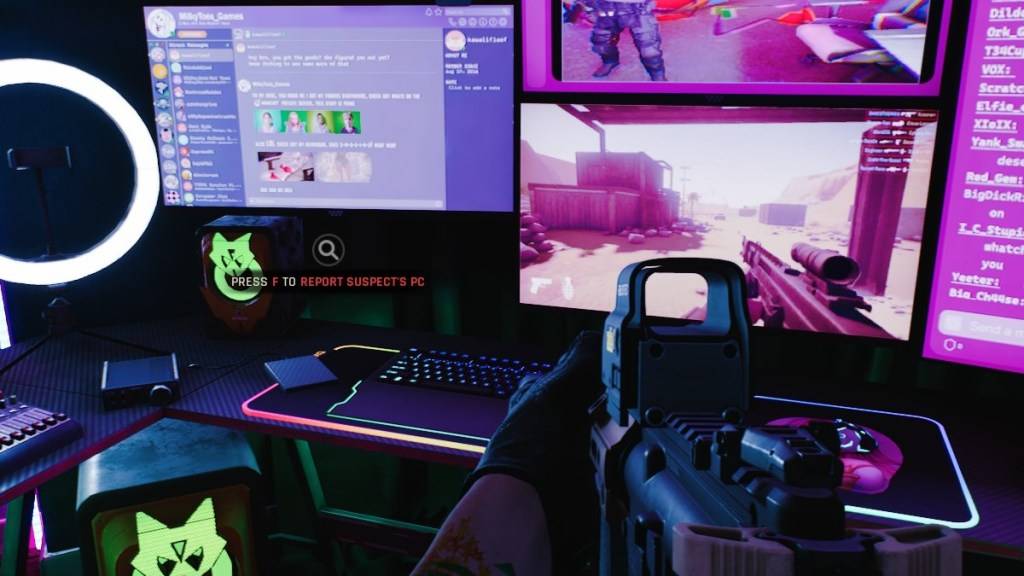 Screenshot via The Escapist
While the "Can’t Connect to Host" error in *Ready Or Not* is frustrating, it can be resolved with the following steps:
Restart Your Game: If this is your first encounter with the error, simply restarting the game might resolve it. For a more thorough reset, close Steam (or your game platform) entirely and relaunch it.
Verify Game Files: Corrupted or missing files are common culprits for many game errors. You can fix this by verifying your game files on Steam. Navigate to your library, right-click on *Ready Or Not*, select Properties > Installed Files > Verify Integrity of Game Files. This process may take a few minutes and could result in a small update.
Whitelist *Ready Or Not*: Although rare, Windows Firewall might interfere with game connectivity. To whitelist *Ready Or Not*, go to Control Panel > System and Security > Windows Defender Firewall > Allowed apps. Click on "Allow another App," browse to the game's installation directory, and select it. Then, click "Change Settings" to apply the changes.
Close VPN and other Background Apps: While VPNs can sometimes improve your gaming experience by reducing ping, they can also cause connectivity issues. If you're using a VPN, close it while playing *Ready Or Not*. Additionally, ensure that unnecessary background applications are closed to prevent interference.
Switch DX Modes: Although uncommon, launch options might be the source of the error. If you continue to face issues, consider switching the DX mode to see if it resolves the problem.
Reinstall the Game: As a last resort, if none of the above solutions work, perform a clean reinstall of the game. Uninstall *Ready Or Not* from Steam, manually delete any remaining files from the game folder, and clear any files in the Local App Data folder (accessible by typing %localappdata% in the Windows Search Bar).
The "Can’t Connect To Host" error in *Ready Or Not* can be a hassle, but with these fixes, you should be able to get back to enjoying your game. Hopefully, one of these solutions has resolved your connectivity issues.
Ready or Not is available now for PC.
-
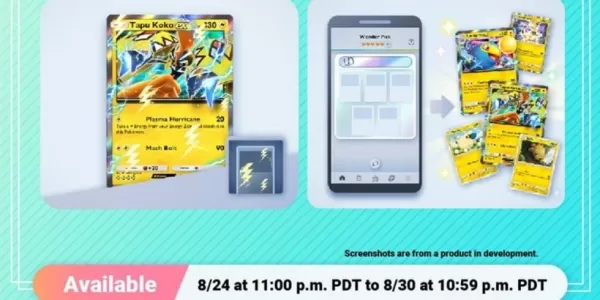 The latest mass-outbreak event in Pokémon TCG Pocket is now liveThis new event shines a spotlight on Lightning-type PokémonAcquire cards with unique flair and a chance at newer ones via Wonder and Rare PicksFor dedicated Pokémon TCG Pocket players, tAuthor : Charlotte Mar 03,2026
 -
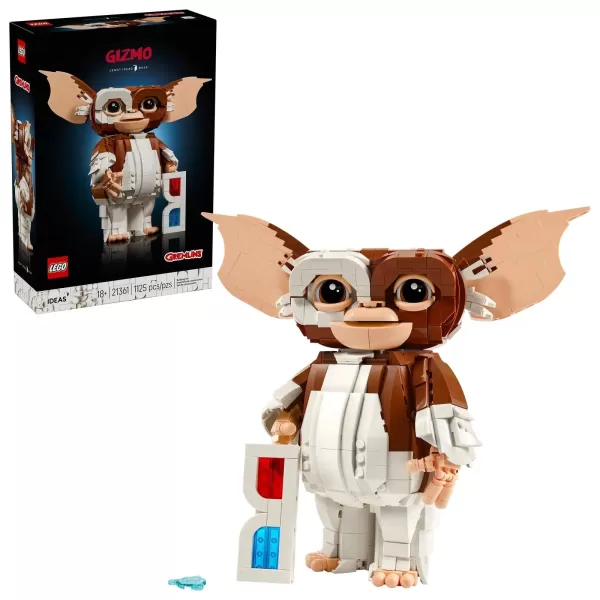 LEGO’s October lineup is already shaping up to be exceptional, with fresh Wednesday-themed sets and the long-awaited LEGO Game Boy making waves. But another thrilling build is ready to steal the spotlight this spooky season: Gizmo from Gremlins is joAuthor : Joshua Feb 24,2026




















- Stardew Valley: How To Befriend Willy
- Crunchyroll Game Vault adds Battle Chasers: Nightwar, Dawn of the Monsters, Evan’s Remains and more
- DISCOVERY CHANNEL TO UNVEIL CROSSOVER IN 'Reverse: 1999' 2.0
- Hotta Studio's Open-World RPG, Neverness to Everness, Announced
- Military Strategy Game Warpath Launches a Navy Update with 100 New Ships
- Half-Life 3 Speculations Spark Again as Risk of Rain Original Devs Join Valve's Game Dev Team